
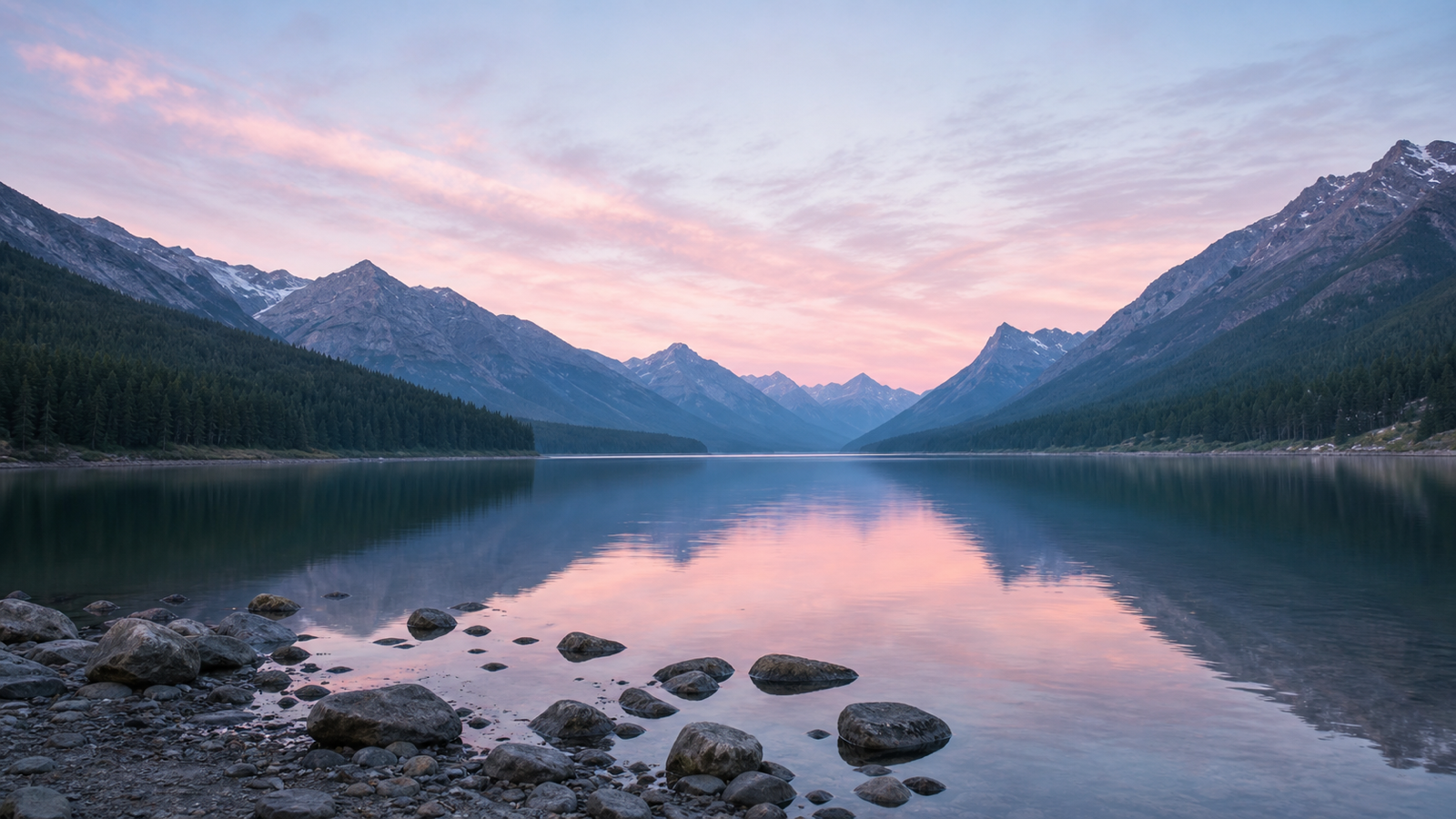
Landscape post
Best for wide feed images and link graphics.
1200 x 675 px
16:9
Use the full width to lead the eye from left to right.
X image resizer
Upload once, choose one of five exact X formats, preview Fit or Fill, and export a ready PNG locally. X comes first, with Twitter included only as the familiar former name.
Drag images here, or click to browse
Your images are processed locally in the browser.
Use the placement—not the source photo—to choose the final canvas.
Best for wide feed images and link graphics.
1200 x 675 px
16:9
Use the full width to lead the eye from left to right.
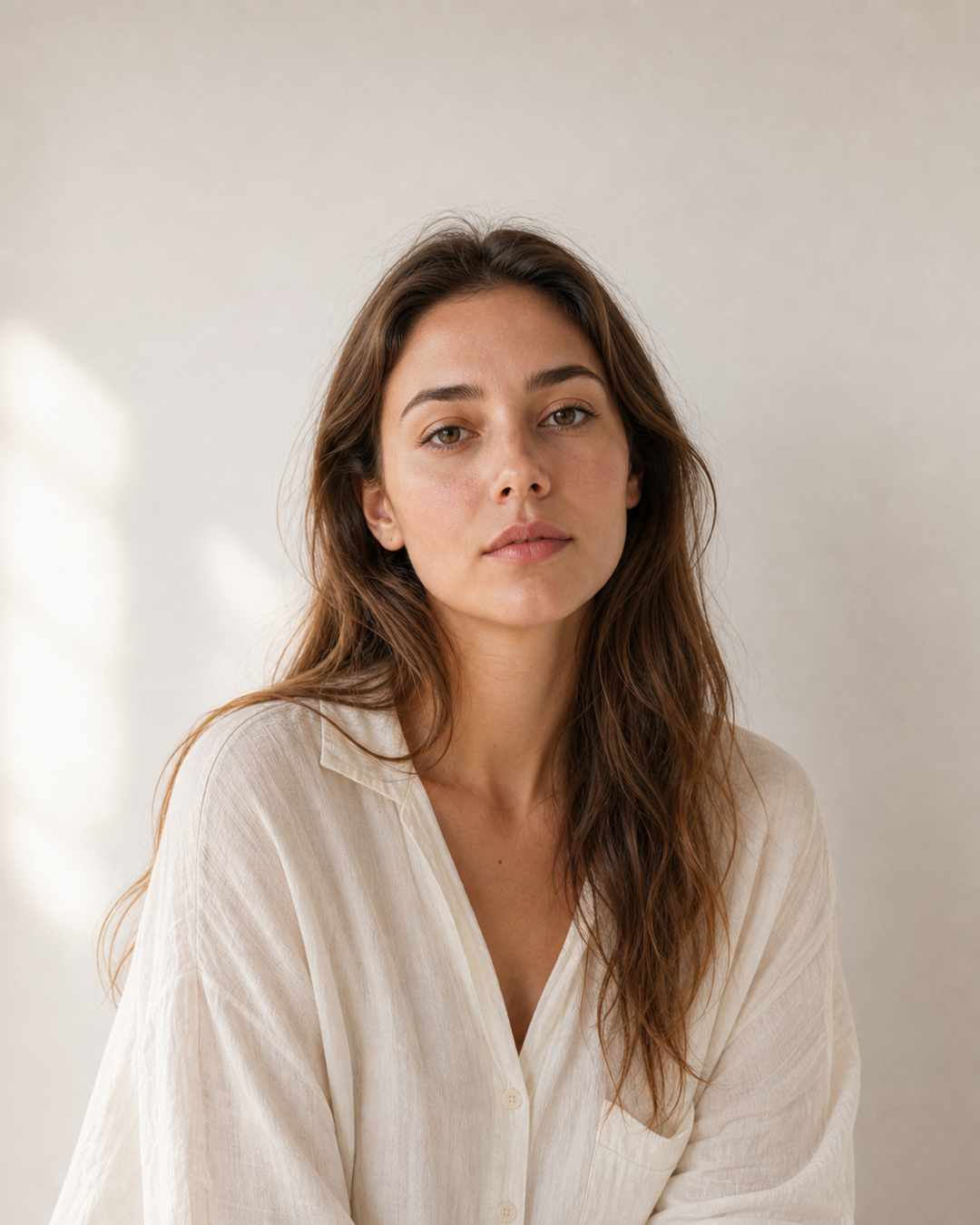
Best for taller mobile-first posts.
1080 x 1350 px
4:5
Keep key text and faces in the center area.

Keep important content near the center.
1500 x 500 px
3:1
Avoid placing text or logos at the far edges.
Preview the square source inside a circle.
400 x 400 px
1:1
Center a face or logo with even breathing room.
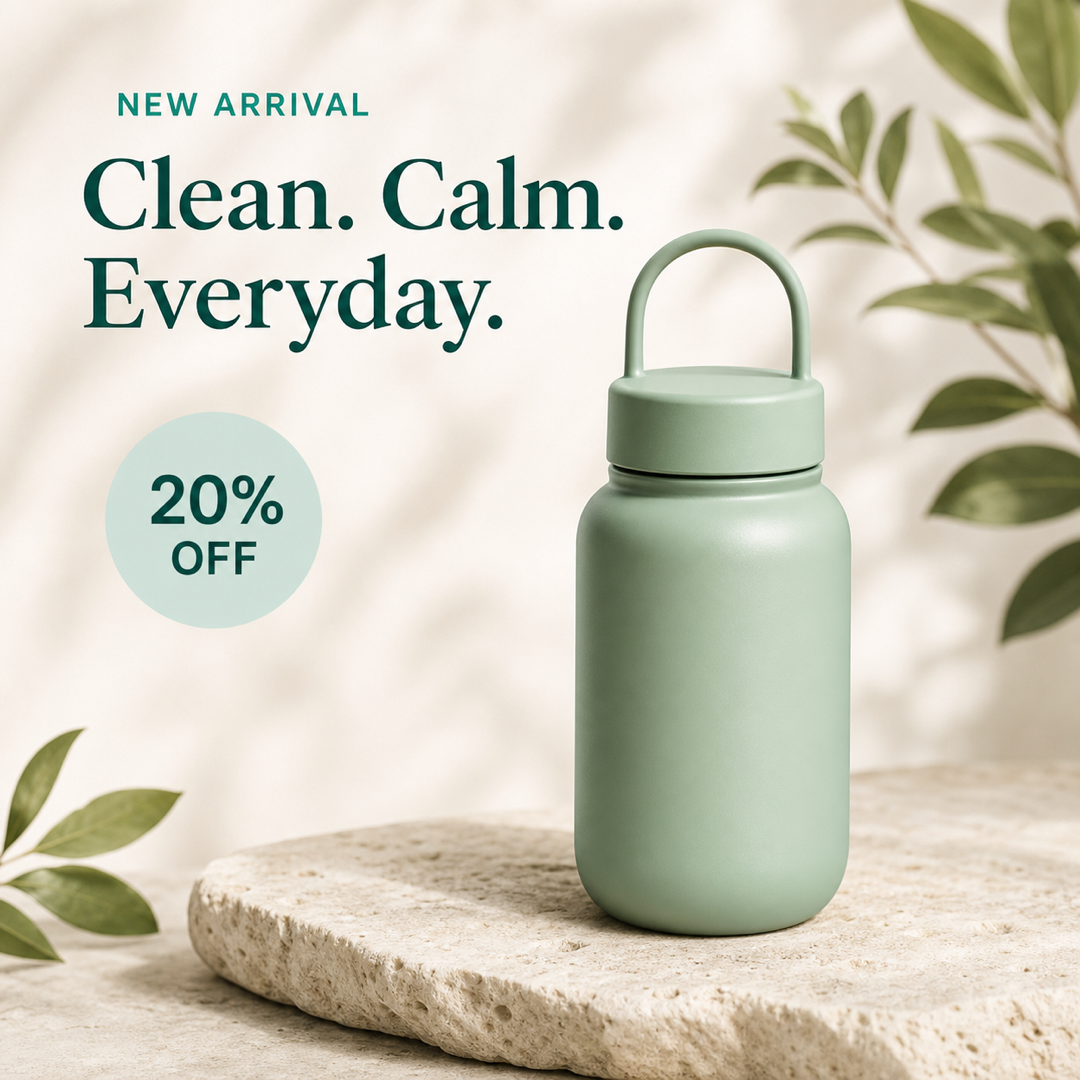
A reusable canvas for balanced graphics.
1080 x 1080 px
1:1
Balance elements with safe margins on all sides.
Add padding when needed so no part of the original is cropped.
Crop the outer source until the image reaches every edge.
Frequently asked questions
Use 1200 x 675 px for a landscape post, 1080 x 1350 px for a vertical post, 1500 x 500 px for a header, 400 x 400 px for a profile picture, and 1080 x 1080 px for a square post.
Yes. X is the current platform name, while Twitter remains a familiar secondary term for the same post, banner, and profile-image tasks. Choose the matching X preset and export the exact canvas locally.
Choose Fit to keep the whole source image visible. The tool places it inside the selected X canvas and can fill unused space with a solid color or a blurred background.
The browser resamples the source directly to the selected dimensions and exports a PNG. Start with the largest clean source available and preview important text, faces, and logos before downloading.
Quick workflow
Choose a JPG, PNG, WebP, or another browser-readable image from your device.
Select landscape post, vertical post, header, profile picture, or square post.
Keep the full image visible or crop it edge to edge inside the exact canvas.
Export the resized X image locally and use it in the matching publishing slot.
X image guide
Use the X image resizer hub when you need to choose between a landscape post, vertical post, profile header, profile picture, or square post. Each Format changes the canvas and preview to match the publishing task.
X is the primary platform name throughout the page. Twitter appears only as the former name that people may still use when searching for a banner resizer, post image size, or profile picture tool.
All resizing happens locally in the browser. Fit preserves the complete image, Fill covers the selected canvas, and the finished PNG downloads without sending your source pixels to a remote processor.
Five named presets cover the core post, header, and profile-image scenarios in one hub.
Keep the whole source visible and complete the unused canvas with color or blur.
The source image is not uploaded to a server or stored by a remote image service.
Focused X tools
Open a fixed-size page when you already know where the image will be published.
Tool directory
Explore more image tools by platform and publishing scenario.
Upload the source, select one of five placements, compare Fit and Fill, and export locally.
Tool directory
Jump between custom, Instagram, Facebook, YouTube, TikTok, X, LinkedIn, and Pinterest image resizers without re-uploading your source image.
Resize any image to a custom width and height with fit, fill, stretch, and batch export.
All sizesResize posts, Stories, Reels, profile photos, and feed formats from one page.
FeedChoose portrait, square, or landscape post formats from one post-focused workflow.
9:16Fit a full photo into a 1080 x 1920 Story canvas without cropping.
9:16Prepare 9:16 Reels images, covers, and thumbnails with safe-zone previews.
1:1Resize a photo for the square profile frame and circular Instagram avatar crop.
4:5Convert an image to 4:5 or 1080 x 1350 for a tall Instagram feed post.
1:1Resize a photo to 1:1 for the classic Instagram square format.
1.91:1Fit wide photos into the 1.91:1 Instagram landscape post frame.
FacebookResize photos for Facebook profiles, feed posts, Stories, Reels, group covers, and event banners.
PostResize a photo to 1200 x 630 for Facebook feed posts and shared link images.
Group coverResize group cover banners to 1640 x 856 with desktop and mobile safe-zone previews.
Event coverResize event banners to 1920 x 1005 with mobile safe-zone and bottom overlay previews.
StoriesFit photos into a 1080 x 1920 Facebook Stories canvas with no-crop backgrounds and previews.
ReelsConvert photos to 1080 x 1920 Facebook Reels images with no-crop fit and safe-zone previews.
ProfileResize a photo for the Facebook profile square and preview the circular avatar crop.
YouTubeResize images for YouTube banners, thumbnails, profile pictures, Shorts, and community posts.
BannerResize channel art to 2560 x 1440 with safe-area and device crop previews.
ThumbnailConvert images to a focused 1280 x 720, 16:9 YouTube thumbnail with title-safe preview.
ShortsResize vertical cover images to 1080 x 1920 for YouTube Shorts and mobile-first title cards.
PostCreate 1080 x 1080 square images for YouTube community posts and channel updates.
ProfileResize a square 1:1 profile picture and preview the circular YouTube avatar crop.
TikTokResize photos for TikTok Photo Mode, square posts, profile pictures, and in-feed ads.
ProfileCreate a 200 x 200 square PFP and preview TikTok's circular avatar crop.
In-feed adResize ad images to 1080 x 1920 and check practical TikTok safe zones.
1200 x 675Resize one landscape X post to a fixed 1200 x 675 canvas.
1080 x 1350Resize one portrait X post to a fixed 1080 x 1350 canvas.
1080 x 1080Resize one square X post to a fixed 1080 x 1080 canvas.
1500 x 500Create a 1500 x 500 profile header and preview the avatar overlap before export.
400 x 400Resize a 400 x 400 square PFP and preview the circular X avatar crop.
Fit / 1200 x 675Fit a complete photo into one fixed 1200 x 675 X post canvas.
5 formatsResize profile photos, personal banners, company logos, company covers, and feed images with real LinkedIn previews.
1584 x 396Resize a personal background photo to 1584 x 396 and preview the profile-avatar overlap.
400 x 400Resize a square profile photo to 400 x 400 and inspect LinkedIn’s circular avatar display.
4 Pin sizesResize square, standard, vertical, and long Pins with no-crop backgrounds and realistic Pinterest previews.
1000 x 1500Resize an image to 1000 x 1500 and preview the recommended 2:3 Pinterest composition.
1000 x 1000Create a 1000 x 1000 square Pin with a product-centering guide and real Pin preview.
1080 x 1920Fit photos into a 1080 x 1920 vertical Pin with mobile-safe preview markers.
1000 x 2100Prepare a 1000 x 2100 long Pin and plan the content rhythm before export.